GolfBUD on Apple Watch
The GolfBUD for AppleWatch app is a complete golf game log that functions with or without iPhone paring. Watch and its paired iPhone communicate with each other using the "Tete-A-Tete" feature. From the iPhone all iPhone stored golf courses are sent to its paired Watch. From the Watch all Watch stored courses are sent to its paired iPhone. It is intended that you would choose to use your Watch or your iPhone to score a round of golf.
Welcome To Options ...
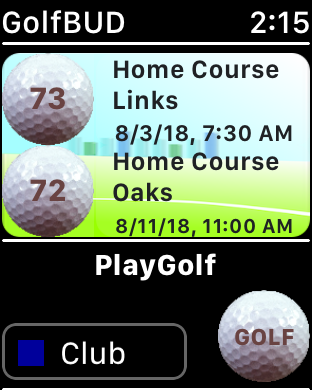
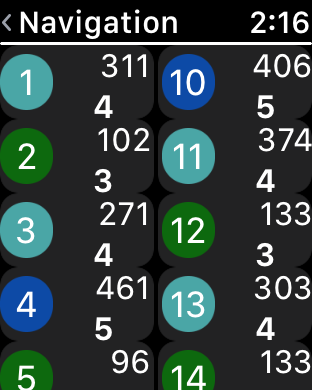
Welcome Screen | Tee Navigation View
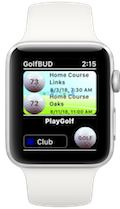
The "GOLF" button on Watch functions the same as on the iPhone. Touch it to duplicate a chosen course. Touch a course to log that round or to view that round. In the "PlayGolf" area select the tee position for the round and touch "GOLF" to begin a new round with the default course information. Select "Tete-A-Tete" and the iPhone database will be supplanted with the watch courses.
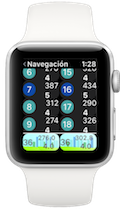
The tee navigation screen is the gatekeeper for accessing the tee logs. Select any hole number button in the two columns to access the front and back nine tee logs. In the front nine navigation column access tee logs for holes 1 to 9. On the back nine column access tee logs for holes 10 to 18. A hole is considered completed if it has a score > 0. The front and back nine summary buttons at the bottom take you to the nine hole summary statistics.
Swipe UP Between Tees
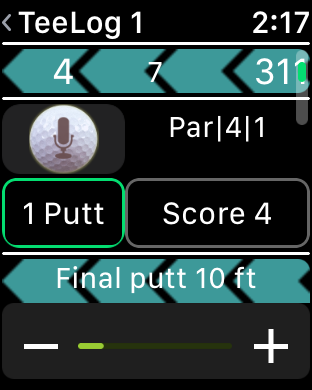
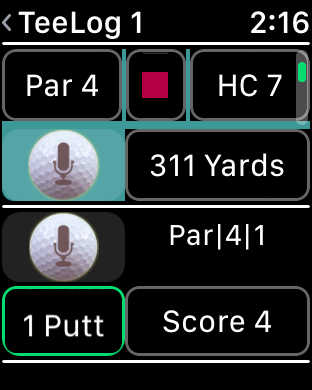
Typical Tee Log | Swipe Arrow to Tailor
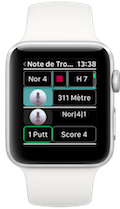
The vertical swipe gesture moves you back and forth between tee logs within the front or back nine. The horizontal swipe on the arrows opens the tee and distance editor screens.
The position, par, handicap, and yards values can be edited using the Apple Watch dictation feature (microphone button) or using their respective pickers and digital crown.
When your score is entered GolfBUD populates the result label with your result|score|putts. If you never enter your putts value it will remain a -1 on the label. If you do chip into the cup or score a hole in one state in your dictation that your total putts was zero, or touch the putts picker and scroll the digital crown to 0.
You can edit either hole data or enter distance data. The score editing segment of the screen is always visible.
Tee Log Force Touch
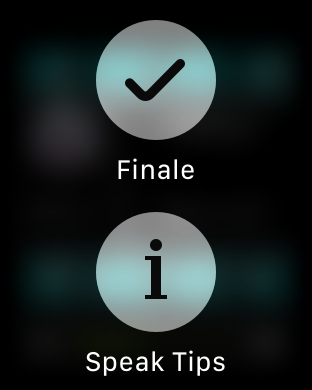
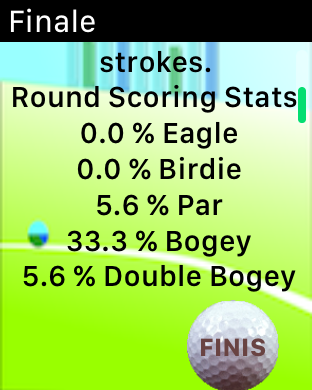
Force Touch Menu | Finale
Inside any tee log, using the force touch gesture will activate a menu. Choose the finale view.
The finale screen is where you edit course rating and slope rating. It also displays a round summary. Touch "Finale" to exit the screen without sending data to the iPhone.
Navigate to Stats
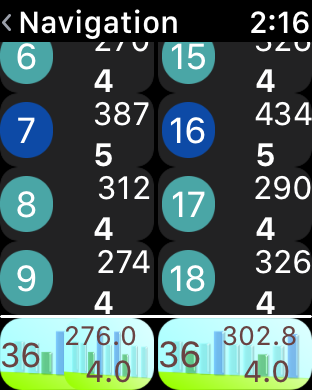
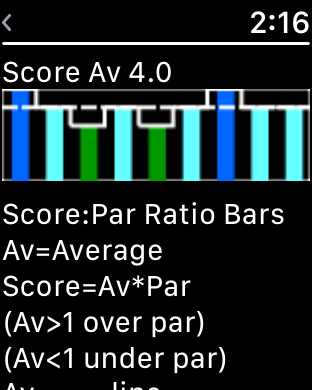
Summary Buttons | Summary Statistics
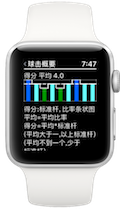
The summary button shows the nine hole total score, the average yardage played, and the average strokes per hole. Touch the front nine or back nine summary button on the navigation screen and the summary statistics come into view.
Swiping left across each summary graph reveals an explanation of the graph. A title is placed above each graph with a relevant statistic.
Tete-A-Tete Alert
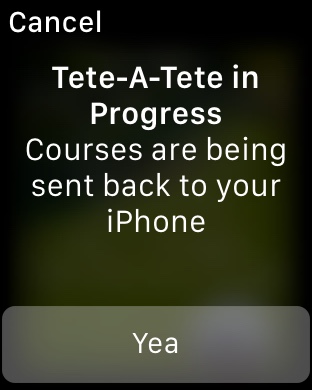
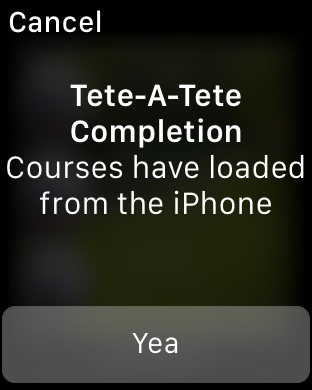
TO iPhone | FROM iPhone
A Tete-A-Tete can NOT be undone after touching "Yea". A Tete-A-Tete can be canceled. Cancel a sending or incoming Tete-A-Tete by touching "Cancel"
Canceling a Tete-A-Tete TO the iPhone means the courses will not be sent to the iPhone.
Canceling a Tete-A-Tete FROM the iPhone means the courses will not be sent to the Watch.
Special Notables
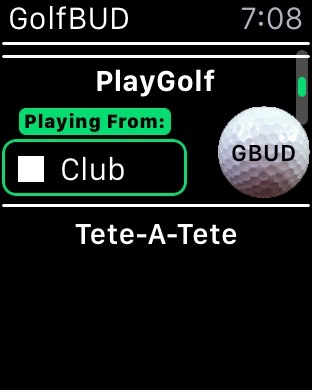
Empty Welcome | Finale "FINIS"
If you complete a Tete-A-Tete from the iPhone when the iPhone has an empty course log (table view empty) the above view populates on your Watch. To create a new course simply touch the "GBUD" button after choosing your default position.
Touching "FINIS" sends a message to GolfBUD that you are finished with your round and executes a Tete-A-Tete. GolfBUD then returns to its welcome screen The Finale view can be exited by touching the top left corner of Watch.
Talk to Me Watch
Speak Tips
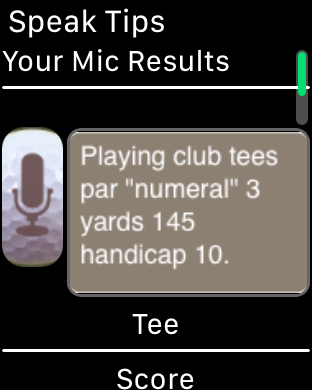
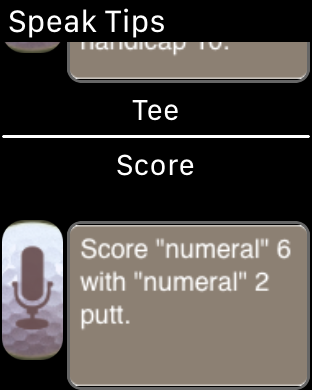
Hole Info | Score
Practice speaking to the microphone and see printed what the result would be
Speak your tee position, par, distance and index using the tips.
Speak your score and puts number.